 |
All Aboard Data Express
Images |
|
|
|
|
|
|
| All
Aboard Data Express™ includes an advanced imaging storage and
viewing capabilities. You can store one image for each category and
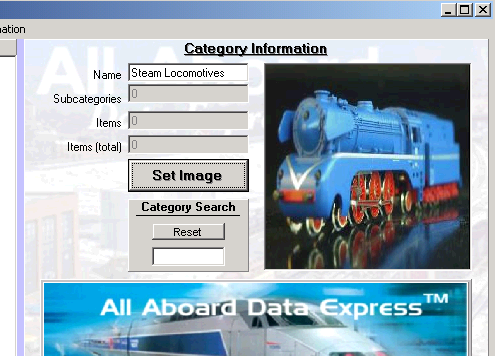
sub-category and un-limited number of images for items. Category, Sub-Category Image Setup Click on the: 'Set Image' button while Adding or Editing New Category or Sub-Category.
Navigate to the folder where the image file is located, select it and click: 'Open' Note: The imaging system supports: BMP, GIF, JPG, ICO, WMF format. It is recommended to use: JPG of GIF format due the fact that these format require less disk space.
|
|
|
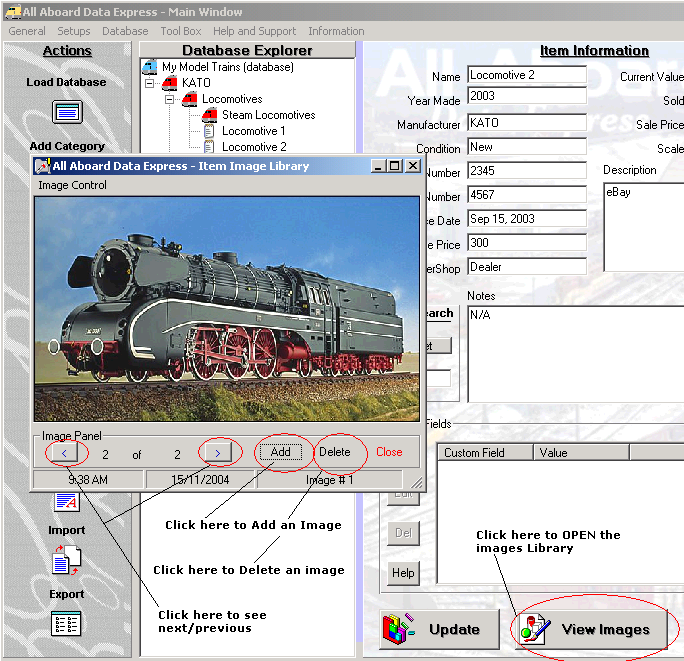
Item Image Library Item Image Library - You can store un-limited amount of images per item! It is recommended to use this feature wisely and with caution due to disk space. Use 'light' images. 'Light' images means JPG or GIF format since they are small in size. Note: Using large size images significantly increase your database file size. Images Library - While Adding or Editing an item, click on the: 'View Images' button. The images library window opens. Add Images to library : Click on the: 'Add' button Deleting Images from Library: Click on the: 'Delete' button To see previous or Next images click on the: < and > buttons respectively
Image Size and Shape We incorporated our patented imaging FlexView within the Image Library viewer. You may change the size and shape of the Library Viewer by clicking on any of the window's corner, Hold and drag it outside. The window will change it's size, preserving the image proportions, applying the FlexView technology. Tayden Design Technical Publications |
|