 |
All Aboard Data Express - To Get You Started |
|
|
|
|
|
|
|
General All Aboard Data Express™ is an advanced database software that specially designed for model railroaders. All Aboard Data Express™ is user friendly and mainly intuitive, yet advanced behind the scene, model railroading database system. In this section we will get you up and running in 3 easy steps!
|
|
|
Step 1 - Create Your Database |
|
|
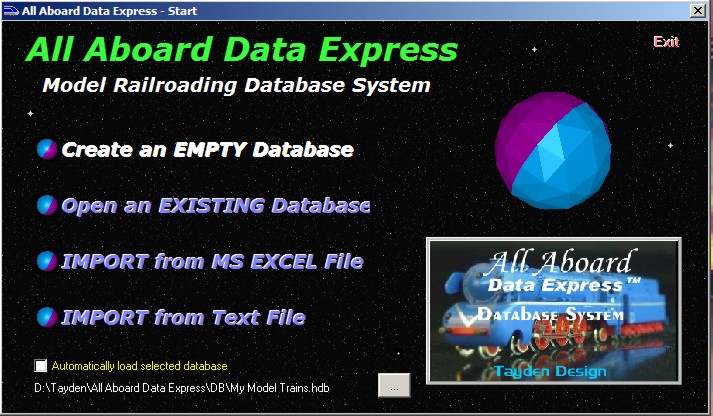
Start All Aboard Data Express - Double click on All Aboard Data Express icons on your desktop, or activate it through the Start menu. (Start --> Program --> All Aboard Data Express --> All Aboard Data Express) On the First window select: 'Create Empty Database'. Note: You may select: 'Open an Existing Database' and open the SampleDatabase.hdb to view the sample database. You may also select: 'Import from MS EXCEL File' or 'Import from Text File' options.
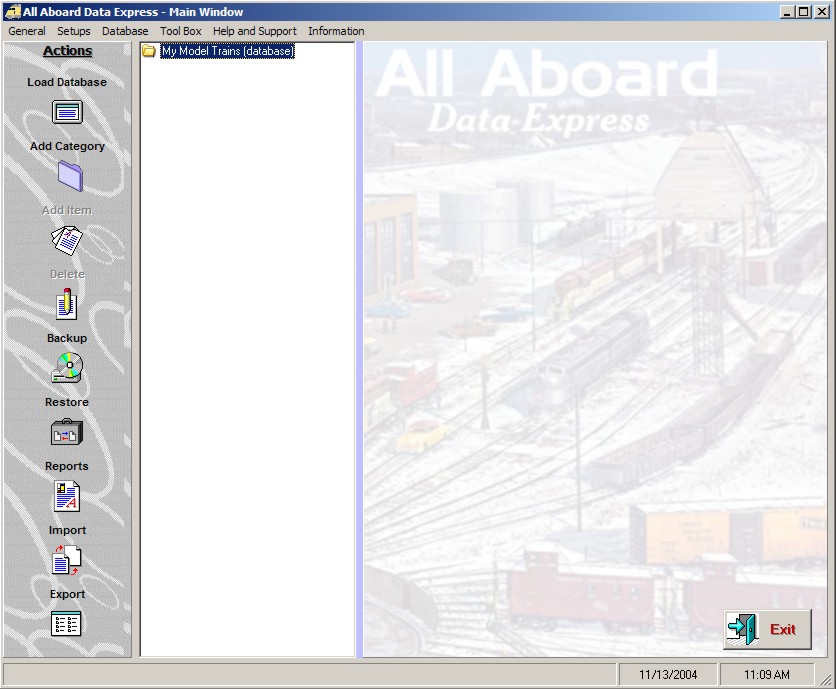
In the window Type your desired database file name. For Example: My Model Trains (The system will automatically assigned the database file type: hdb) The system will create your database file and will open the program's main window.
|
|
| Step
2 - Create Your Categories
Select your database by Left Click on it's title at the Database Explorer. (Left Click on: 'My Model Trains')
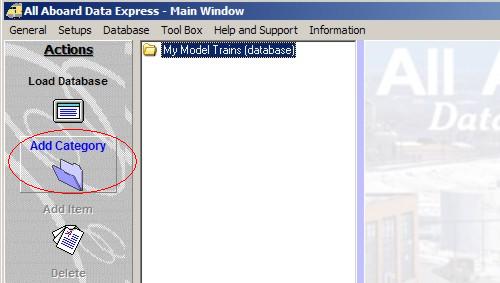
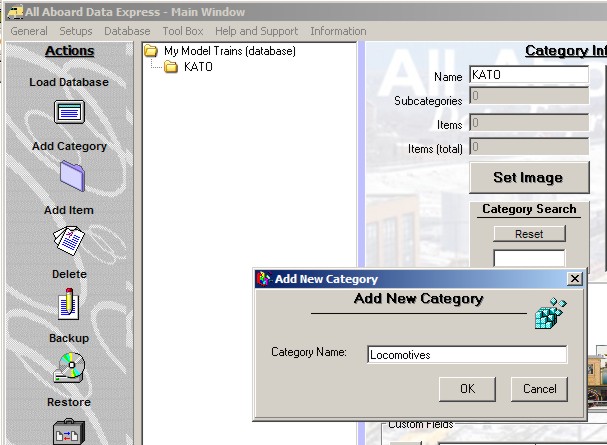
Click on: 'Add Category' button at the Actions Bar.
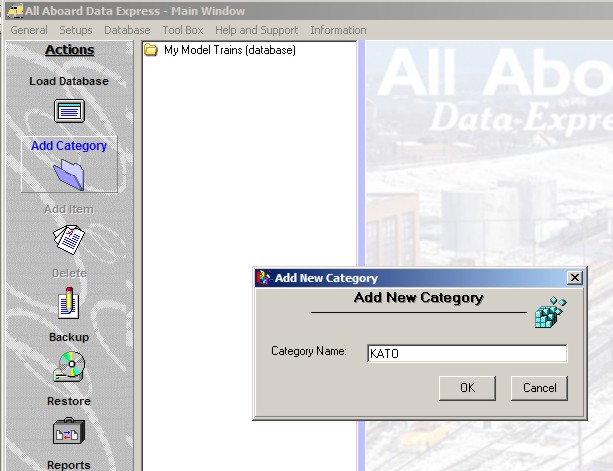
At the window type your desired category, in this example: KATO
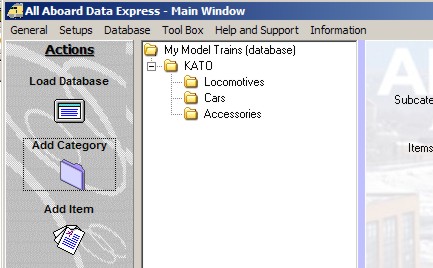
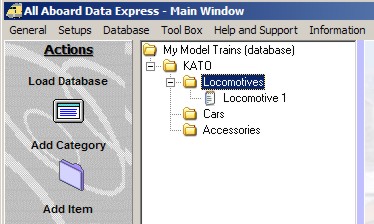
Click: Ok. You created your first category named: KATO Now, we will create under category KATO three (3) sub-categories called: Locomotives, Cars and Accessories. Select the category that you are interested to create sub-categories. (Left Click on the: KATO Category). Click on the: Category button. In the window type: Locomotives.
Select again the KATO category and Click on the: Category button again to create the sub-category: Cars and then in a similar way Accessories.
Congratulations! You successfully created your database file and main categories!
|
|
|
Step 2 - Create Your Items
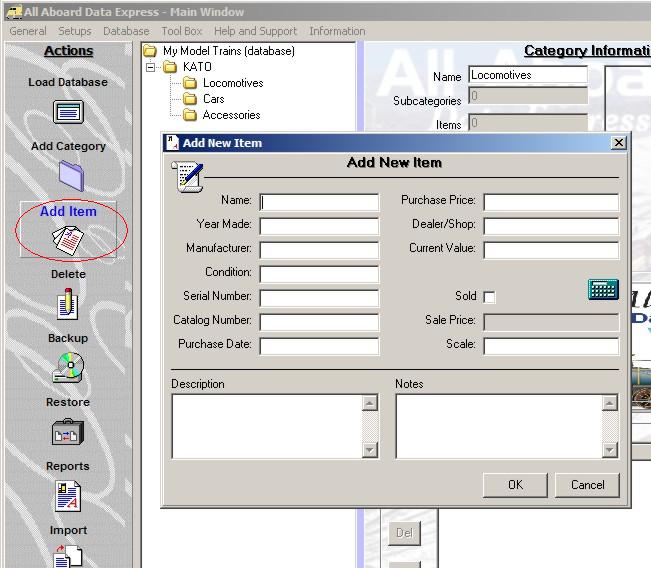
Select the category or sub-category that you are interested to create items within. In this example we will add to the category: Locomotives. Select the sub-category: Locomotives (Left Click on it in the Database Explorer) Click on the: 'Add Item' button on the action bar.
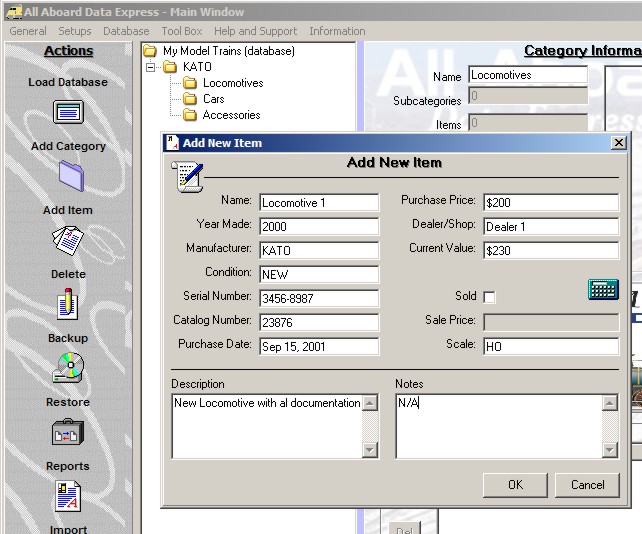
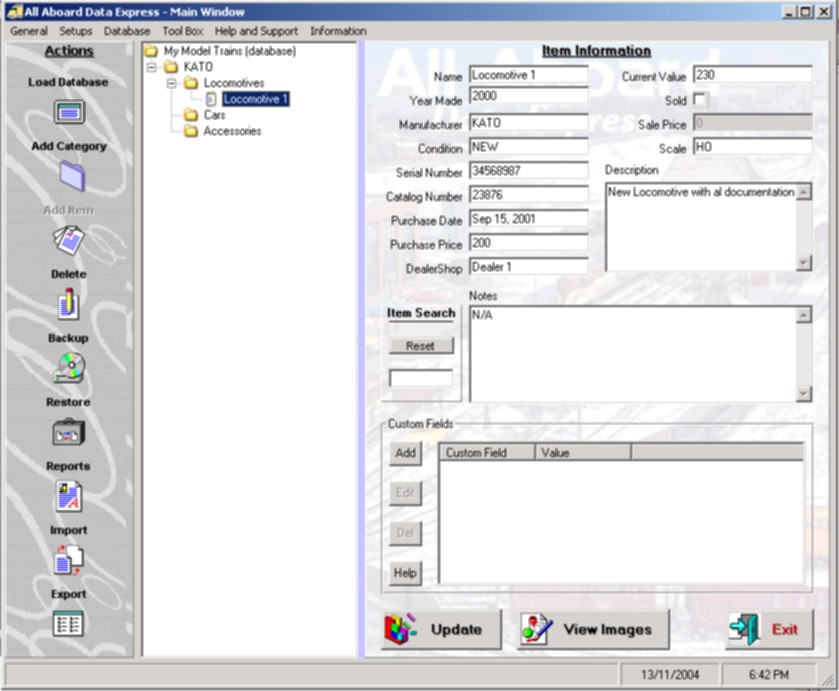
At the 'Add New Item' window type your item's details. When you are done, click on the 'Ok' button. In this example we fill an arbitrary locomotive details to be stored in the database.
After completing the item's details insertion, Double Click on the Category or Sub-Category to open it and view your items. You will notice that the new item's name is shown under the selected category or sub-category.
In a similar way you can record more items and create more categories and sub-categories.
|
|
Step
3 - View your categories, sub-categories and items
This is it!
You are now capable of recording your inventory using All Aboard Data Express™
|
|
|
Tayden Design Technical Publications |
|